Backups aren't enough: create 'restore points'
I almost lost a bunch of data this week. Here's how my backups saved me (just), and what I've changed.
Warning: thinking about backups can make you sleepy. But if you care about your data, you need to pay attention. There's a lot here: ask for help on the forum and Discord. This is important.
Note: now that I've finished this post, yeah, it's long, and complex. I might turn this into a short YouTube series. Let me know if that'd be helpful.
What happened
Actually this started months ago. I accidentally deleted my entire Documents folder! I was being too quick on the keyboard and I literally just Cmd+A then Cmd+Deleted everything. Turns out that's surprisingly easy to do.
I undid by pressing Cmd+Z a second later. But the damage was done. I store my Documents folder in iCloud Drive and I knew as soon as it happened that I'd likely triggered a cascade of network activity. My command to delete would have still been half-way to the cloud when I issued the command to undo (i.e. move those files out of my Trash back to Documents), and it would have been a more robust service than iCloud that handled that without issue.
What I should have done at that point was stop everything and spend a few hours making sure everything was okay. I didn't do that.
Lesson 1. If something like this happens you MUST drop everything and fix it, completely and properly, before doing anything else.
Discovering the issue
This week I finally found time to upgrade myself to Life Admin v2.1 I thought I'd take the opportunity to really clean up some old stuff, and in doing so I realised that a bunch of really old archive stuff was missing.2 The folders were there, but there was nothing in them.
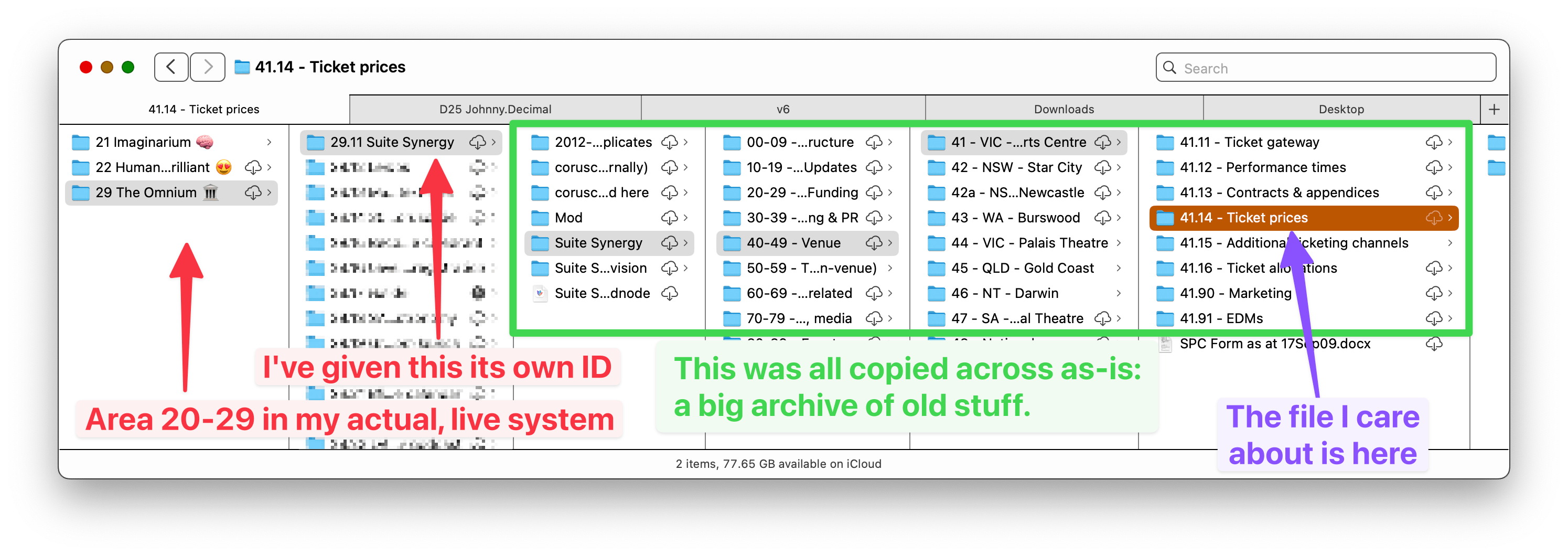
Lesson 2. If it doesn't have a proper Johnny.Decimal ID, it might as well not exist. In my case, files buried in an 'archive' folder were, in fact, important to me. I was just too lazy to organise them properly. I've since given them their own IDs in a new area, 29 The Omnium.
Even if these files had their own ID, I might not have picked this up. Everything looked okay, in the moment.
These missing files were buried pretty deep -- this thing that I'm archiving is itself an old Johnny.Decimal structure.3 How would I have known to go looking for this file, way down at 41.14?
Lesson 3. I'm going to keep a short list of 'canary files'. They're files that I care about, but rarely look at. I will manually check them in case of a 'restore event'.
So now I need to restore from backup
Obviously I have backups. I wrote a whole series about it. But backups are complex, mine especially so. This is of my own making, but also hard to avoid given my situation. (I won't recap here: read that series.)
Here are a few of the problems I encountered.
- As soon as you actually need to restore from a backup because you lost some data, shit gets real if you'll excuse my language.
- Stress levels rise. Everything becomes difficult.
- This is not a time to be confused.
Lesson 4. Good records are essential. This is what your JDex is for. See below for a template that you can download.
- Not knowing which backup, as in from which date, to restore.
- Because I can't remember exactly when this data-loss event occurred. I think it was around August? That's 4 months ago.
- I use Arq and it allows you to search, really quickly, for a specific file across all of your backups. This made things much easier.
- Its restore is also really fast, and this backup was local, i.e. a hard drive attached to the server, not cloud. So I could quickly do test restores to identify which was the right one.
Lesson 5. Know your backup software. Use good software: if yours isn't good, find another. I recommend Arq for Mac.
Lesson 6. Local backups are better than cloud backups when it comes to restoring data because they're much faster. (But you still need an offsite copy, in case your house burns down.)
- Not knowing which backup, as in literally which one, to restore.
- Because the way I'd configured them -- which I think is the way most people configure them -- didn't make it really obvious where things were.
- So when I came to use them, there was confusion. Not what you want in a time of crisis.
Lesson 7. Change the way you structure backups. Previously, I backed up a hard drive or a computer. But what's actually important to me is the unit of data which is a Johnny.Decimal system.
- My backups are encrypted.
- Which they should be. And I use 1Password, and my vault is reasonably neat.
- But when I tried the password I thought it should be, it failed. Shit. I tried another. Failed! Oh, shit. This is bad.
- I must have mis-copy/pasted the first password. When I tried again, that worked.
- But to have any possibility of doubt at all here is a total failure.
Ref: Lesson 4. Good records are essential.
'Set and forget'
This whole thing got me wondering if we're doing it all wrong. Backup services advertise themselves as 'set and forget': just install, then never think about it again!
That's what got me into this problem.
If you know about backups you're shouting at the computer: but Johnny, you should test your backups regularly and then you wouldn't be in this situation!
That's true. But you know what I think most people do when forced, begrudingly, to test their backups? They think of a file that they deleted from their Desktop yesterday and they restore that. This is not a realistic test. It doesn't stress you, or your system.
Lesson 8. Daily 'set and forget' backups are great and you should not stop doing them. But you should also have a subset of backups that are a lot more deliberate, and are manually activated. You must see these backups as an opportunity to be neat and tidy. You must cherish them. They are not a chore. They are your happy place.
Conscious backups aka 'restore points'
Let's address that last lesson 8 first. I think there's room in life for two types of backups. The first is the one I've already got: the 'set and forget'. 90% of the time this is going to do the job. Don't stop doing those.
But the other type is what I'm calling a 'restore point'. In the IT world, a restore point is a backup at a specific point in time. You're saying that you can restore to this point in time.
They are much more deliberate, which means that they take more work. But they give you the sort of 'comfortable awareness' of your system that only comes from giving it your clear attention.4
Today is a restore point
I finished my migration to LAS v2 today, and with it a bunch of tidying up and moving around of data.
Today -- now -- my system is in a really nice state. I've just looked at everything and I'm deeply familiar with it. I'm sure it's good. Today is a restore point.
So I'm configuring a new backup. Here's what makes it different from my daily backups.
'Restore point' rules
- They are manually triggered.
When I decide the time is right, I'll run this backup. I'll be adding something to my task system to prompt me to do this, perhaps quarterly.
- They have no retention rules.
Normal backups are smart about the data they retain. Your computer might perform a backup every hour, but you don't need to keep every one of those backups. That would be a waste of space.
A typical 'retention cycle' might be to keep:
- Every hour for the last 72 hours.
- Every day for the last 30 days.
- Every week for the last 52 weeks.
- Every month forever.
My 'restore points' have no retention cycle. Every one is saved forever.
- They have no exclusion rules.
My daily backup excludes a bunch of files and folders. Anything that looks temporary, or like a cached version, or like something I've downloaded, or like something that I know I could get from the cloud, is excluded.
For my daily rules, this keeps them lean and fast. This is particularly important for me as I live on the road. But that isn't relevant for 'restore point' backups. It is more important that they are complete, so they have no exclusions.
The structure of a 'restore point'
Per lesson 7, these backups don't just back up an entire drive, say, or my user folder. (That's what your daily backups probably do, which is appropriate in that context.)
Instead, they back up the specific folders and only those folders that make up the Johnny.Decimal system that they target. I have 2 restore point backups: one for my P76 Personal system, and another for D25 Johnny.Decimal, the business system.
The personal system has files split across 2 locations:
- My
~/Documentsfolder. This is stored in iCloud. - An external hard drive. This contains ~500GB of media files that don't need to use cloud storage space.
So it only backs up these folders. Not my whole laptop. No other cruft. Nothing is excluded: if something is in one of those folders, it's because I put it there, and I want it backed up.
The business system is simpler as everything is in a single folder. So that folder is the only one in the restore point backup.5
Local backups using Arq
These backups all take place on an always-on Mac mini which is connected via Ethernet to a Synology. We learn from lessons 5 and 6: use good software that you know well to make local backups because they're fast.
Records-keeping
Lesson 4 taught us that good records-keeping is vital. You must have total confidence in these backups, and have good records that you can depend on in a crisis.
Of course, this is what your JDex is for. LAS and SBS both have a place for backups. At LAS that's 14.14 My data storage & backups, so in that note I have left myself copious notes. I've recorded:
- The name of the restore point backup (in Arq).
- Its data sources (the folders it backs up).
- Its target (where it backs up to).
- Its frequency (manual).
- Any exclusion and retention rules (none).
- Where its encryption keys are held (1Password: be explicit and name the entry).
Then, every time I manually trigger a backup, I'm noting:
- The date & time of the backup.
- How large each of the folders was at the time (right-click in Finder and Get Info).
- That I checked my canary files.
You want this to be a story that you can return to. A place of total comfort.
Use my template
I've knocked up a template that I'm using myself. It's way far from perfect, but it does the job. Get them here.
Using the 3-2-1 method of data storage -- see the notes on pages 3 & 4 in the PDF, or search online -- it has a space for you to record:
-
Where the primary copy of your data is.
- This is the folder that you back up.
-
Where the secondary copy of your data is.
-
Where the backup of your data is.
-
Which of the secondary or backup is your offsite copy.
Fill that in, and save it in your system.
- LAS:
14.14 My data storage & backups - SBS:
14.23 Backups & recovery
Ask for help
I've created a dedicated forum post for this topic as it's a big one. Ask for help there, or in the thread on Discord.
In this series
This post is part of a series on storage, data, & backups.
- 22.00.0101 My data storage & backup strategy
- 22.00.0115 Storage, data, & backups [SBS.14.20]
- 22.00.0116 Data [SBS.14.22]
- 22.00.0119 Synchronisation [SBS.14.22]
- 22.00.0120 Backups [SBS.14.23]
- 22.00.0177 Backups aren't enough: create 'restore points'
100% human. 0% AI. Always.
Footnotes
-
We added a handful of IDs to v1 and moved things around in the finance area to align it with the Small Business System. ↩
-
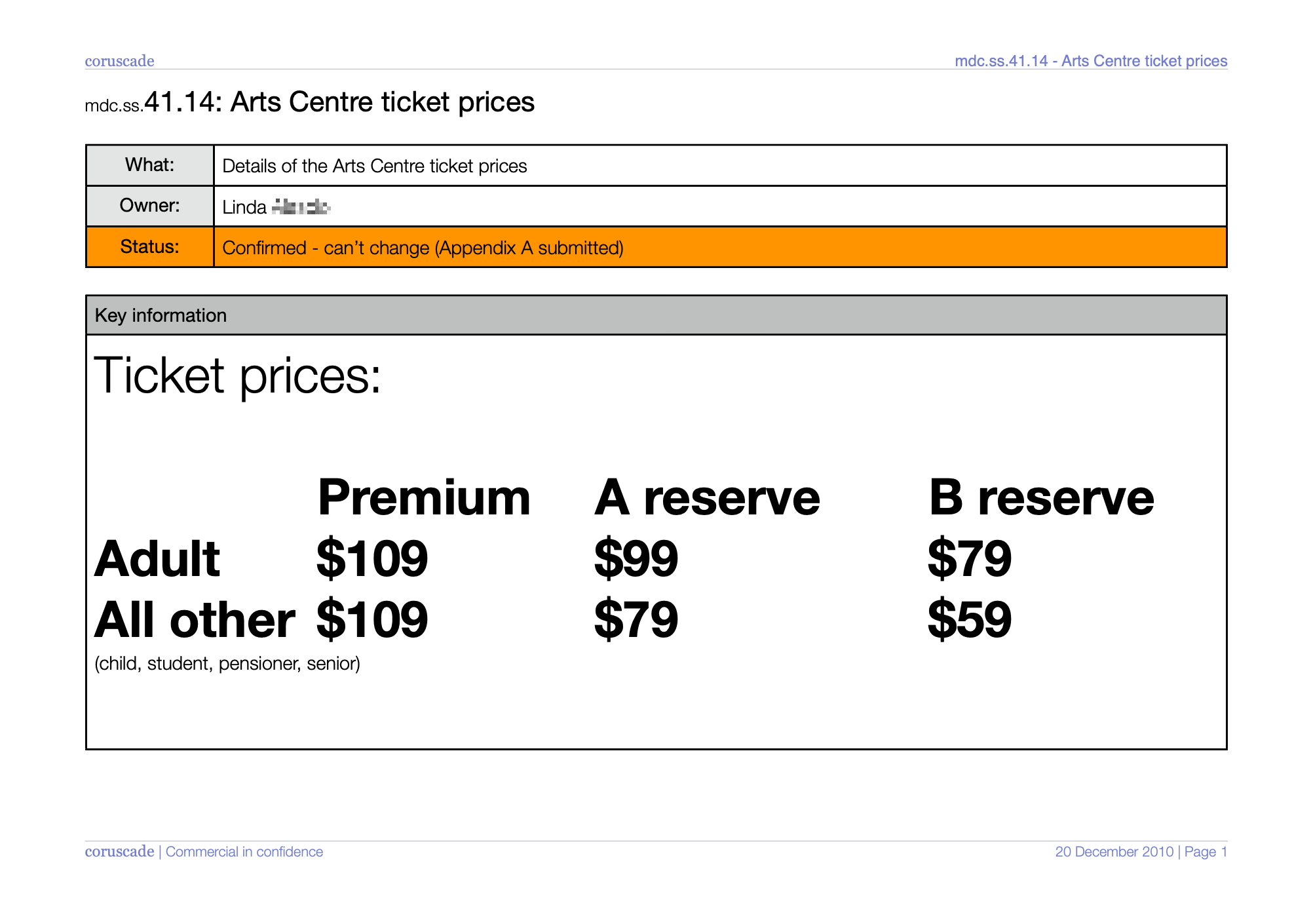
Specifically, the file that started Johnny.Decimal: a carefully-designed PDF of ticket prices that was stuck to our office wall in 2010. I wanted a way to reference this file that wasn't an ugly file path, so I came up with the idea of the numbers.
That was 15 years ago, and I have no use for this file today. I think about it perhaps once a year. But I'd be devastated if I lost it.
-
To make this clearer, here's a screenshot. You can right-click and Open in new tab to make bigger.
-
A concept taken from my task and project management methodology, where it works really well. ↩
-
This folder is on our server, an always-on Mac mini. I synchronise partial copies to our laptops using Syncthing. ↩